
Free AI Isometric Scene Generator - Create Isometric Art with Nano Banana Pro
Generate professional isometric scenes and illustrations instantly with AI. Free isometric generator powered by Nano Banana Pro and Dreamina. Create isometric cities, buildings, rooms, and game art in seconds. Perfect for game dev, UX design, and illustration.
1. What is Isometric Scene Generator?
The Isometric Scene Generator is a specialized AI tool designed to create flawless isometric illustrations, environments, and assets. Unlike standard perspective images where parallel lines converge at a vanishing point, isometric projection maintains parallel lines, typically at a 30-degree angle from the horizon. This unique perspective eliminates distortion, making it the industry standard for game development (sims, RPGs, strategy games), UX/UI design, architectural visualization, and technical infographics.
Whether you are building a tile-based mobile game or designing a clean, 3D-style landing page, the Isometric Scene Generator automates the complex geometry, delivering professional results in seconds.
7 Key Features
- Perfect Isometric Angles: Algorithms are tuned to enforce strict 30° axonometric projection, ensuring all assets align perfectly on a standard isometric grid.
- Grid Precision: Generates objects with consistent proportions, making them ideal for grid-based layouts and mapping systems.
- Layered Depth: Intelligently renders foreground, midground, and background elements to create a sense of scale and volume without perspective distortion.
- Tile-based Designs: Capable of creating seamless, tileable ground textures and self-contained building blocks for easy map assembly.
- Color Harmony: consistent lighting and palettes across generated batches, ensuring disparate elements blend into a cohesive scene.
- Scalable Vectors: Produces clean, sharp edges that translate easily into vector formats for high-resolution print or responsive web design.
- Game-Ready Assets: Optimized for easy extraction, often generating objects on clean backgrounds suitable for immediate sprite creation.
2. How to Use Isometric Scene Generator?
Creating complex 3D-like scenes usually requires hours of modeling in Blender or Maya. With the AI Isometric Scene Generator, you can achieve similar results via text prompts.
Step 1: Describe Your Isometric Scene
The key to a successful generation is specifying the perspective and the "container" of your scene.
- Define the Subject: A floating island, a cutaway room, a city block, or a single game icon.
- Set the Perspective: Always include keywords like "isometric view," "isometric projection," or "3D rendering."
- Example Prompt: "Isometric view of a cozy coffee shop interior, cutaway box style, wooden furniture, espresso machine, warm lighting, pastel color palette, 3D render, c4d, high detail"
💡 Pro Tips:
- Structure: Mention "grid-based" or "on a white background" to keep the focus tight.
- Cleanliness: Request "clean lines," "minimalist," or "low poly" for clearer shapes.
- Lighting: "Soft isometric lighting" helps avoid harsh shadows that might obscure details.
Step 2: Parameters & Model Selection
Choosing the right underlying model is crucial for the style you need:
- Nano Banana Pro: Best for clean, vector-style illustrations and flat design. Ideal for UI icons and tech infographics.
- Dreamina: Superior for artistic, vibrant game art and atmospheric scenes. Use this for fantasy environments or detailed RPG assets.
- SeeDream: Excellent for technical and architectural accuracy, perfect for floor plans and realistic building exteriors.
Settings:
- Aspect Ratio: 1:1 (Square) is best for single assets or tiles. Use 16:9 for wide landscape scenes.
- Negative Prompt: Add terms like "perspective distortion, vanishing point, flat 2d, sketch, messy lines, blurry" to enforce the isometric look.
Step 3: Generate & Export
Once generated, review the assets for geometric consistency.
- Variations: Generate 4-8 variations to find the perfect angle or layout.
- Post-Processing: Use the built-in upscaler to crisp up edges. For game assets, remove the background to create transparent PNGs.
- Tile Sets: If creating a map, generate specific tiles (e.g., "isometric grass tile," "isometric road corner") individually and assemble them in your game engine.
3. Use Cases & Prompts
3.1 Game Development
Isometric graphics are a staple in mobile strategy, simulation, and RPG games. AI can rapidly prototype assets or generate final production art.
- Use For: City builders, tactical RPG maps, inventory items, character sprites.
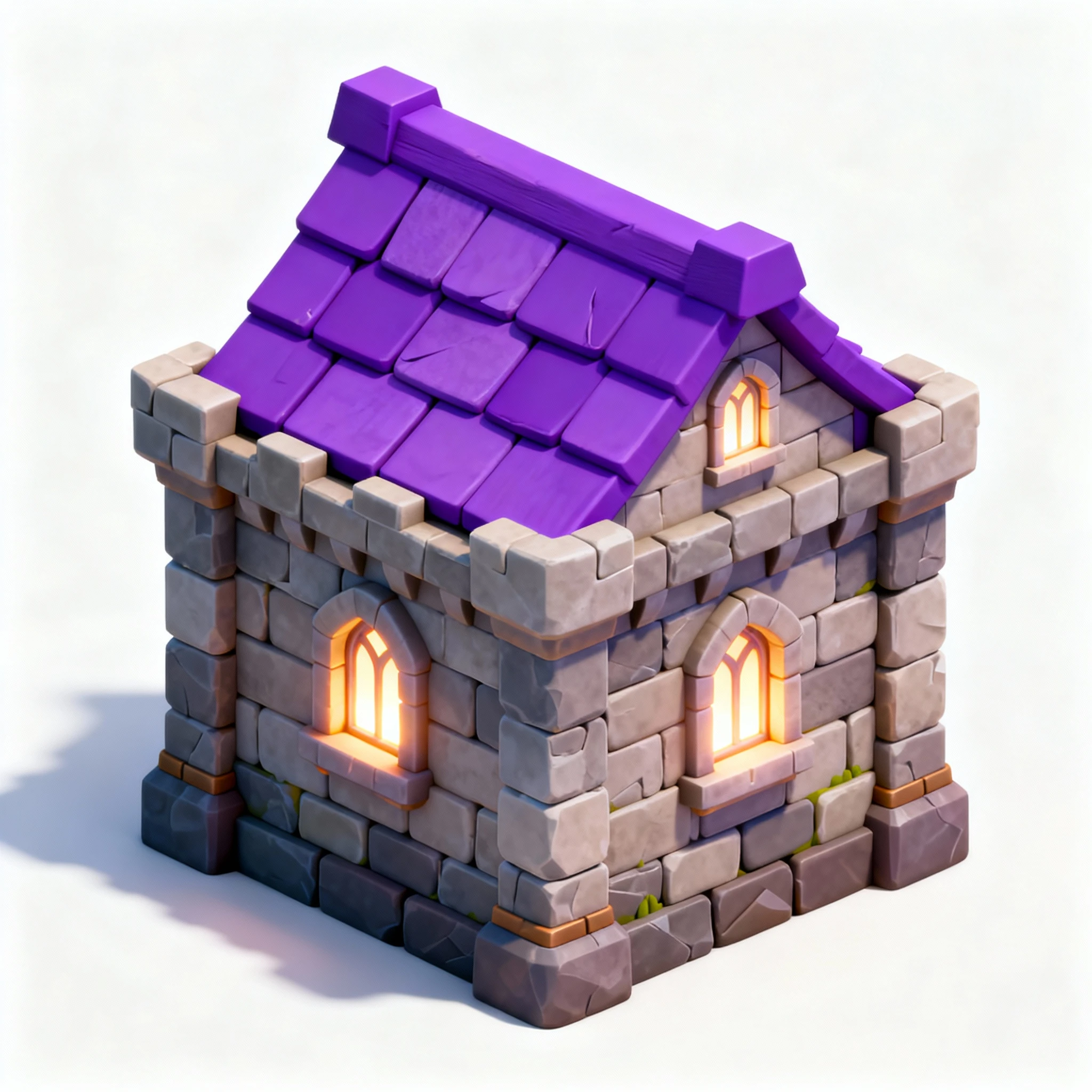
- Prompt: "Isometric game asset, magic potion shop, medieval fantasy style, stone walls, purple roof, glowing windows, white background, game sprite, supercell style --v 5"
3.2 UX/UI Design
Tech companies often use isometric illustrations to explain complex abstract concepts like cloud computing, server architecture, or data flow.
- Use For: Website hero sections, feature explanations, onboarding screens, empty states.
- Prompt: "Isometric illustration of cloud data storage, server racks, floating data packets, blue and white gradient scheme, tech aesthetic, clean vector style, adobe illustrator style"
3.3 Architectural Visualization
Architects and interior designers use isometric cutaways to show layout and flow in a way that standard photos cannot.
- Use For: Floor plans, interior design mood boards, real estate marketing, urban planning.
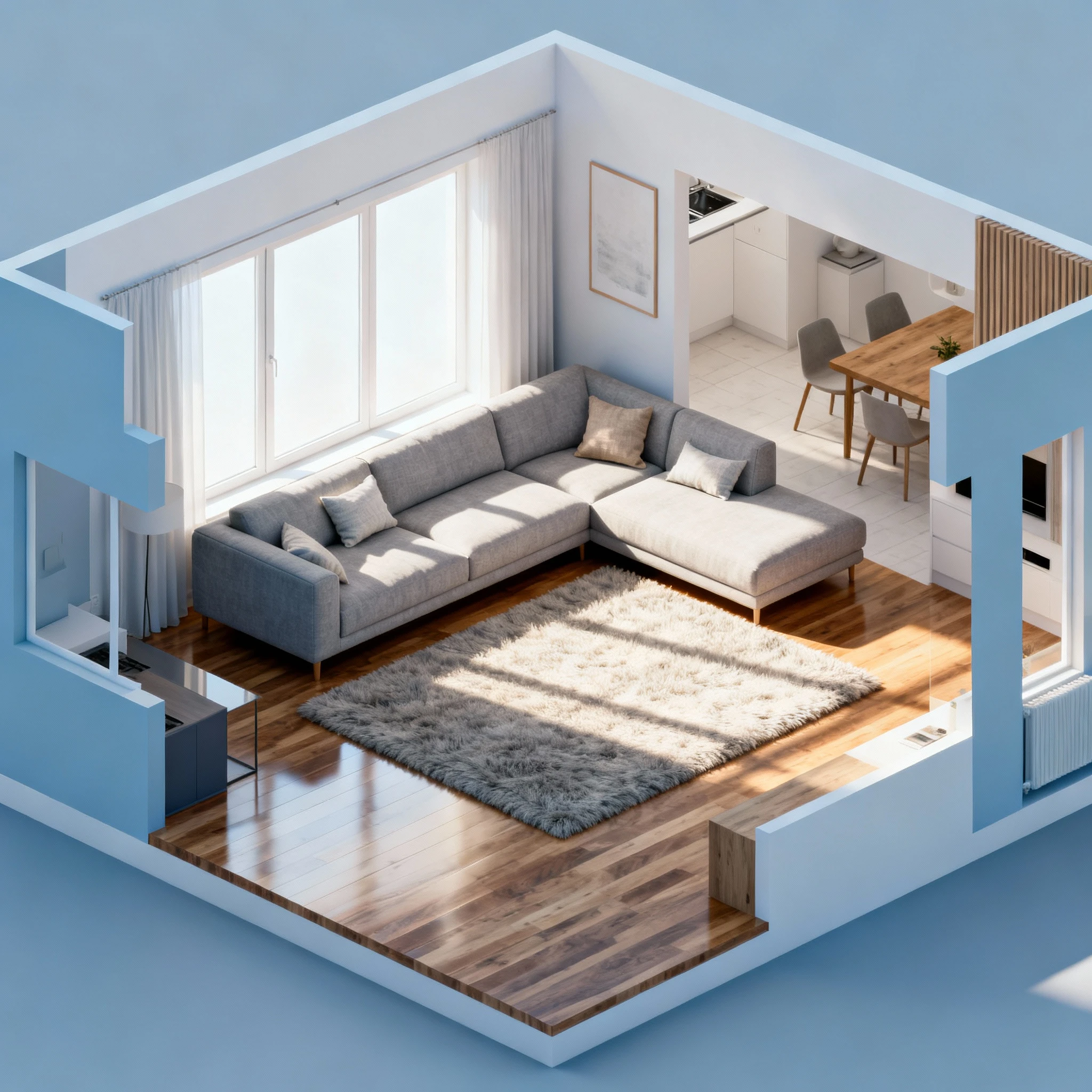
- Prompt: "Isometric cutaway render of a modern scandinavian living room, open floor plan, sectional sofa, sunlight through window, realistic textures, unreal engine 5 render"
3.4 Infographics & Data Viz
Isometric flowcharts make boring business processes look engaging and spatial.
- Use For: Supply chain diagrams, organizational charts, factory process visualizations.
- Prompt: "Isometric factory production line, conveyor belts, robotic arms, assembly process, infographic style, flat colors, clear distinct shapes, white background"
4. Prompt Writing Guide
Mastering the isometric aesthetic requires a specific set of keywords and structural habits. Here is the ultimate guide to crafting the perfect isometric prompt.
4.1 Isometric Prompt Structure
A reliable formula for consistent results is:
[Perspective Keyword] + [Subject] + [Environment/Container] + [Style/Art Direction] + [Lighting/Color] + [Technical Specs]4.2 Essential Isometric Keywords
These are non-negotiable for enforcing the 30-degree angle:
- Primary triggers: "Isometric view," "isometric projection," "axonometric view," "30-degree angle."
- Structural triggers: "Grid-based," "tile design," "voxel art," "orthographic view."
- Container triggers: "Cutaway box," "floating island," "diorama," "micro-world."
4.3 Scene Composition
Control how the AI arranges the elements:
- Depth: "Layered depth," "foreground elements," "detailed background."
- Arrangement: "Centered composition," "knolling" (organizing objects in parallel), "exploded view" (for technical parts).
- Shadows: "Long shadows" (for dramatic effect) vs. "soft ambient occlusion" (for clean UI).
4.4 Style Variations
- Flat / Vector: "Flat design, 2D vector, Adobe Illustrator, solid colors, no gradients."
- 3D / Realistic: "Octane render, Unreal Engine 5, ray tracing, photorealistic textures."
- Pixel Art: "16-bit, pixel art style, retro game aesthetic, dithering."
- Low Poly: "Low poly, faceted, sharp edges, minimalist 3D."
- Stylized / Cartoon: "Supercell style, Clash of Clans art style, vibrant, chunky proportions."
4.5 Negative Prompts
Exclude these to prevent the AI from breaking perspective:
- "Vanishing point, horizon line, fish-eye lens, wide angle, macro photography, blurry background, messy, sketch, distorted perspective."
5. FAQs
Q: How do I ensure the isometric angle is exactly 30 degrees?
A: While AI models approximate the angle based on training data, using the keyword "isometric projection" combined with "orthographic" usually forces the model to abandon standard perspective convergence, aligning lines to the 30-degree standard used in engineering and gaming.
Q: Can I create tileable assets for game maps?
A: Yes. Use keywords like "seamless tile," "game tile," and "top-down isometric." For best results, generate individual elements (e.g., a grass block, a road corner) on a white background and assemble them in your game engine or tile editor (like Tiled).
Q: How does the generator handle scale and grid systems?
A: AI generators don't inherently "know" your specific pixel grid (e.g., 64x64). However, by requesting "voxel" or "grid-based" styles, the output often respects relative proportions. You may need to resize the final output in Photoshop to fit your specific engine's grid.
Q: Can I export these directly to Unity or Unreal Engine?
A: You can export the images (usually PNGs). For 2D games, they work as sprites immediately. For 3D environments, these images serve as concepts or textures, but the AI generates 2D images, not 3D
.obj or .fbx models.Q: How do I create a cohesive collection of assets?
A: To maintain consistency, use the same "seed" if available, or strictly copy-paste the style section of your prompt (e.g., "...low poly style, pastel color palette, soft lighting") while only changing the subject (e.g., "tree" to "house").
Q: What is the difference between Isometric and Axonometric?
A: Isometric is a specific type of axonometric projection where all three axes are scaled equally. In prompts, "isometric" is the stronger, more common keyword for the "video game look," whereas "axonometric" might yield technical architectural drawings with different angles.
Q: How do I handle characters in isometric scenes?
A: Characters can be tricky due to foreshortening. Prompt for "isometric character sprite" or "chibi style" to get proportions that look right from a top-down angle. Avoid close-ups; full-body shots work best.
Q: How can I control the color palette?
A: Be specific. Instead of just "colorful," try "limited palette," "pastel tones," "neon cyberpunk colors," or "monochromatic blue." You can also reference art styles like "Ghibli style colors" for specific vibes.
Conclusion
The Isometric Scene Generator revolutionizes how designers, developers, and artists create isometric art. What once required mastery of 3D software and precise angle calculations can now be achieved through intuitive text prompts. Whether you're building a tile-based mobile game, designing a technical infographic, or visualizing architectural concepts, this AI tool delivers pixel-perfect isometric geometry instantly. By mastering the prompt structure, keyword vocabulary, and style variations outlined in this guide, you can produce professional-grade isometric assets that integrate seamlessly into your projects. From vibrant game worlds to clean UI illustrations, the isometric perspective offers a timeless aesthetic that balances depth with clarity. Start generating your isometric scenes today and discover the creative freedom of AI-powered axonometric art.